Documentation
Hotkeys
Every hotkey in Gisti – global, in the screenshot overlay, in-window, and the Action Menu.
Global
Work anywhere on your Mac, even when Gisti is hidden.
| Open / close Gisti | ⌥Space |
| Screenshot region with OCR | ⇧⌘X |
Both are configurable in Settings → General and Settings → Screenshots.
Screenshot overlay
Live while ⇧ ⌘ X has the selection overlay on screen. The last three are held down mid-drag and reshape the selection straight away, without moving the mouse.
| Toggle Area / Window mode | Space |
| Toggle Image / Text capture | T |
| Copy the color under the cursor | Tab |
| Loupe magnification (4× / 8× / 16×) | Scroll |
| Capture the entire screen | ⏎ |
| Cancel | Esc |
| Lock one side (hold while dragging) | ⇧ |
| Resize from the center (hold while dragging) | ⌥ |
| Move the selection (hold while dragging) | Space |
See Screenshots for what each capture mode produces, and for the loupe and color picker.
Modes
| Stream | ⌘1 |
| Topics | ⌘2 |
| Gist | ⌘3 |
| Settings | ⌘4 |
| Settings (alternative) | ⌘, |
| Mode menu | ⌘M |
Inside the window
| Save input as note | ⏎ |
| New line in input | ⌥⏎ |
| Ask AI about input | ⌘⏎ |
| Action Menu | ⌘K |
| Time filter menu | ⌘T |
| Content filter menu (Stream, Topics) | ⌘F |
| Toggle semantic / text search | ⇧⌘S |
| Content filter chips (All / Notes / Clips / Images / Chats) | ⌥1…5 |
| Favorites only (on top of the type) | ⌥6 |
| Time period (All / Day / Week / Month) | ⌃1…4 |
| Toggle focus: input ↔ list | Tab |
| Previous / next item | ↑↓ |
| Previous / next item (vim) | ⌃KJ |
| Previous / next item (emacs) | ⌃PN |
| First item | ⌘↑or⌃Hor⌃B |
| Last item | ⌘↓or⌃Lor⌃F |
| Extend selection | ⇧↑↓ |
| Open selected element (or copy it – see Settings) | ⏎ |
| Actions for a multiple selection (or copy it all – see Settings) | ⏎ |
| Close / back | Esc |
Action Menu (⌘K)
The Action Menu is a command palette for the selected element. Every action also works as a direct hotkey while the menu is closed.
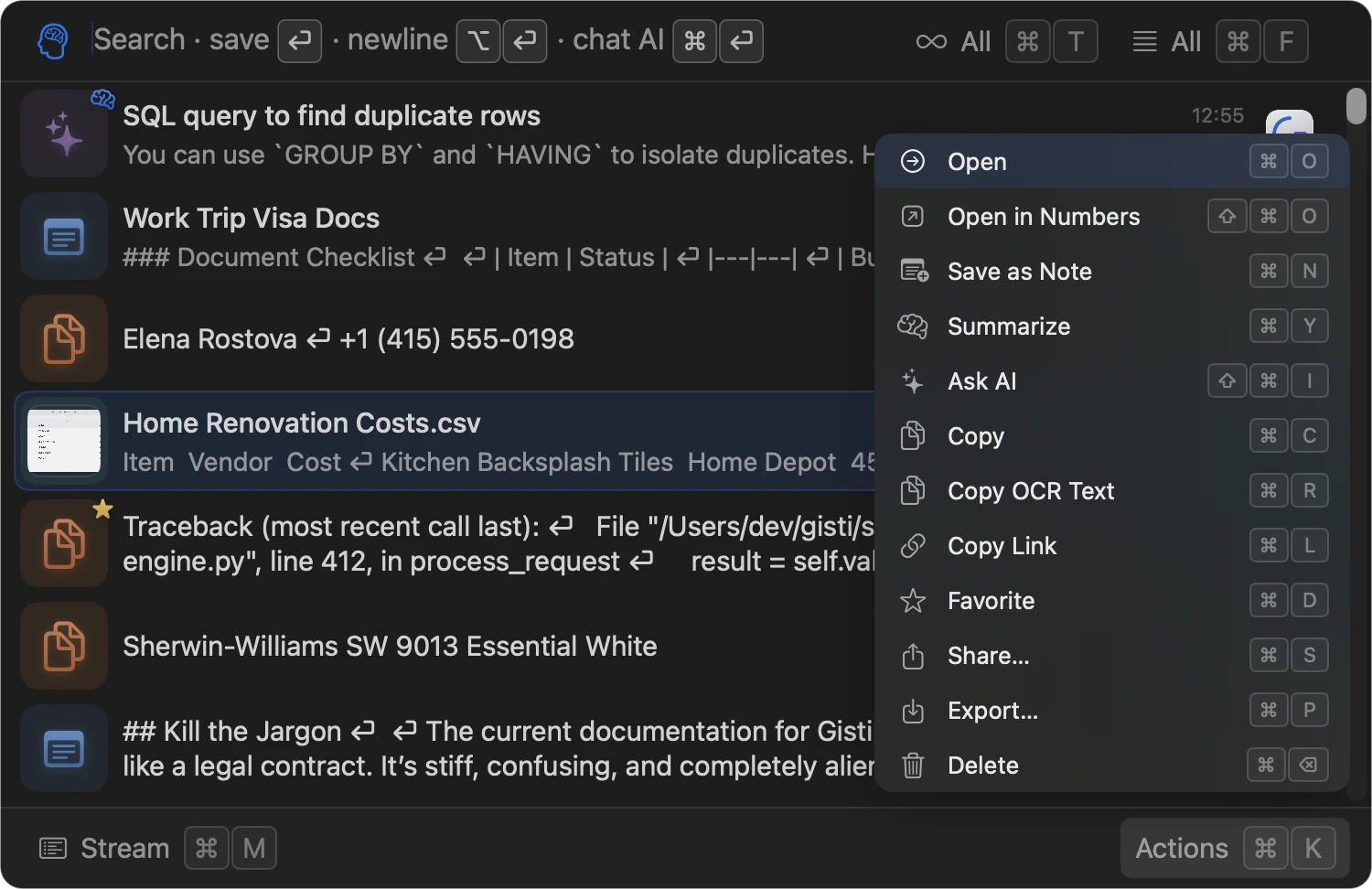
| Open | ⌘O |
| Open Source App | ⇧⌘O |
| Save as Note | ⌘N |
| Summarize | ⌘Y |
| Ask AI | ⇧⌘I |
| Copy | ⌘C |
| Copy without Formatting | ⌥⌘C |
| Copy OCR Text | ⌘R |
| Copy Link | ⌘L |
| Favorite / Unfavorite | ⌘D |
| Share… | ⌘S |
| Export… | ⌘P |
| Show in Finder | ⇧⌘G |
| Delete | ⌘⌫ |
Start typing to filter the list – the filter line sits at the bottom of the
menu, so it stays in one place while the list above it narrows. It matches
initials as well as words, so cl finds Copy Link and oiam finds
Open in Activity Monitor, and it forgives a typo. Arrow keys, ⏎
and the direct hotkeys keep working while a filter is active.
Esc clears the filter first and closes the menu on the second press.
With multiple elements selected (⇧ ↑/↓), the same hotkeys apply to the whole selection: copy, favorite, delete, or Ask AI about all of them at once.
Detail view
Shared by every element type:
| Find in text | ⌘F |
| Next match | ⏎or⌘G |
| Previous match | ⇧⏎or⇧⌘G |
| Close find | Esc |
| Edit Title | ⇧⌘E |
| Save as Note | ⌘N |
| Summarize | ⌘Y |
| Favorite / Unfavorite | ⌘D |
| Share… | ⌘S |
| Export… | ⌘P |
| Save AI summary as Note | ⇧⌘N |
| Copy AI summary | ⇧⌘C |
| Delete | ⌘⌫ |
| Back / close detail | Esc |
Text notes:
| Edit Text / View Text (autosaves) | ⌘E |
| Copy text | ⌘C |
| Copy text without formatting (clips that kept some) | ⌥⌘C |
| Pin / Unpin as floating window | ⌘U |
| Show formatted / code / raw (when a chip is shown; also in ⌘K) | ⇧⌘F |
Images and screenshots:
| Toggle OCR text | ⌘O |
| Copy OCR text | ⌘R |
| Copy image (or crop selection) | ⌘C |
| Copy at the other resolution (1× ↔ full) | ⌥⌘C |
| Open in Preview | ⇧⌘P |
| Backdrop (background, shadow, corners) | ⇧⌘D |
| Zoom in / out | ⌘=or⌘- |
| Zoom to selection | ⌘\ |
| Move selection by one pixel | ←→↑↓ |
| Pick color under cursor | Tab |
| Pan (hold, then drag) | Space |
Pinned windows
A record floated in its own window with ⌘ U keeps its own small set of shortcuts – see Pinned windows:
| Edit Text / View Text (autosaves) | ⌘E |
| Find in text | ⌘F |
| Next / previous match | ⏎or⇧⏎ |
| Edit Title | ⇧⌘E |
| Show formatted / code (when a chip is shown) | ⇧⌘F |
| Title-bar menu | ⌘K |
| Close the window | ⌘W |
| Cancel title editing / exit edit mode / close find | Esc |
Chat
| Send message | ⏎ |
| New line in message | ⌥⏎ |
| Attach file | ⇧⌘A |
| Ask AI (start chat with selection) | ⇧⌘I |
| Save chat as Note | ⌘N |
| Copy | ⌘C |
| Copy Link | ⌘L |
| Summarize chat | ⌘Y |
| Favorite / Unfavorite | ⌘D |
| Share… | ⌘S |
| Export… | ⌘P |
| Edit title | ⇧⌘E |
| Save AI summary as Note | ⇧⌘N |
| Copy AI summary | ⇧⌘C |
| Delete chat | ⌘⌫ |
| Stop streaming / close | Esc |
See Chat for what each action does.