Documentation
Settings
Every section of Settings – hotkeys, theme, accent color, AI, storage.
Open Settings with ⌘ 4 or ⌘ ,. A search field at the top filters all sections by keyword.
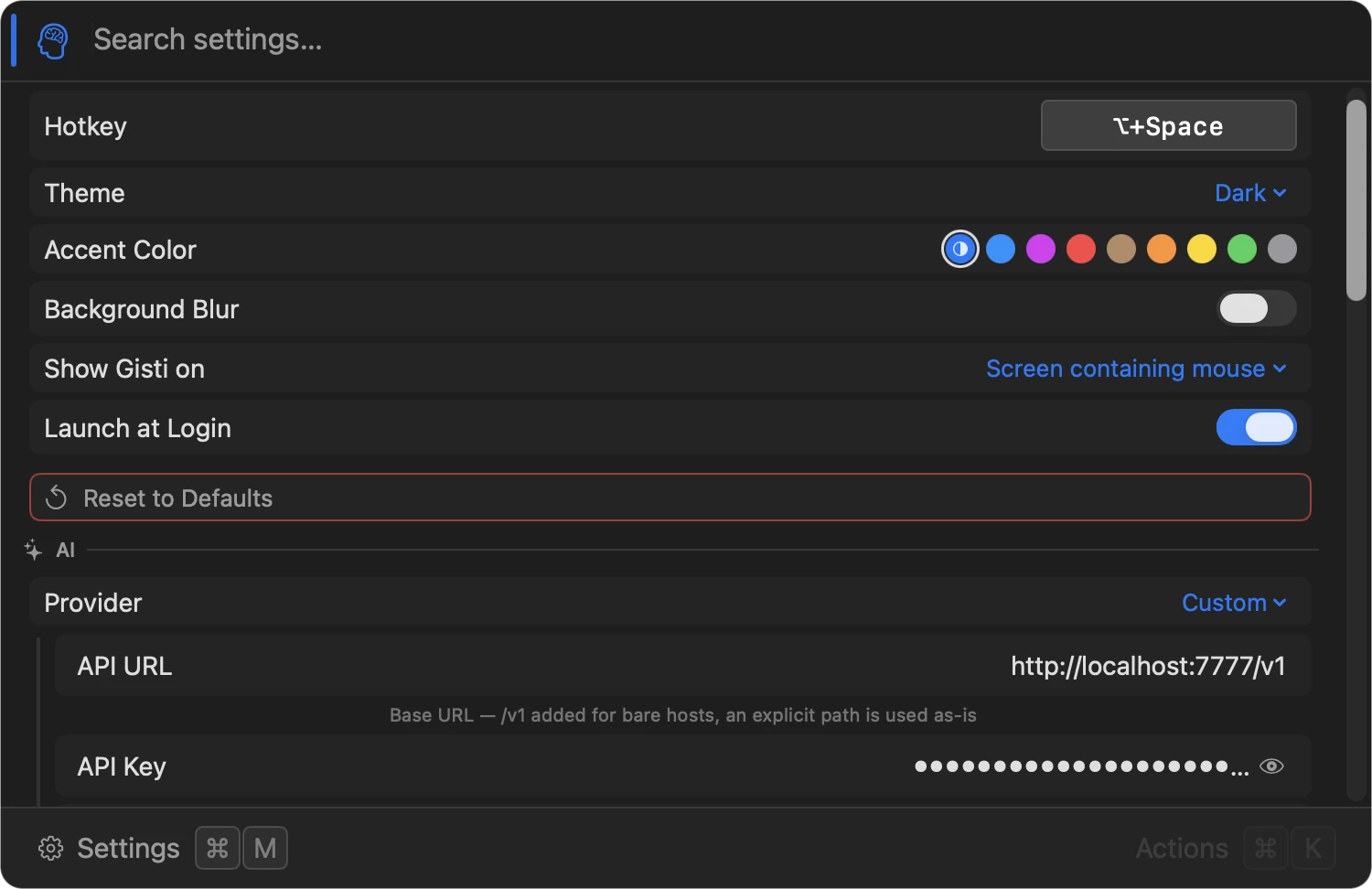
General
- Hotkey: rebind ⌥+Space to anything (default ⌥ Space). A combination another app or macOS already owns is refused while you are recording it – the field says so and keeps the old one, rather than saving a shortcut that would do nothing when pressed.
- Theme: System, Dark, or Light (default System).
- Accent color: the selection/highlight color across the whole UI: System, Blue, Purple, Red, Brown, Orange, Yellow, Green, or Graphite (default System).
- Background Blur: toggle the panel’s frosted, see-through background on or off (default on). Turn it off for a plain, solid background if blurred-through content behind the panel makes text harder to read.
- Show Gisti on: Screen containing the mouse, Screen with the active window, or Primary screen (default: screen containing the mouse).
- Launch at Login: toggle; off by default, also offered in the welcome window on first launch.
AI
Provider, server URL, model, and Test Connection. Disabled by default. Ollama, LM Studio and MLX come with their usual local address and a default model filled in; Custom takes any OpenAI-compatible endpoint you run. All of it is overridable. Details in AI providers.
Semantic Search
A single toggle: Enable Semantic Search (off by default). The model runs locally via MLX; turning this off immediately stops indexing. Tuning (including which embedding model is used) lives in advanced.yaml. See Semantic search for how it works.
App Launcher
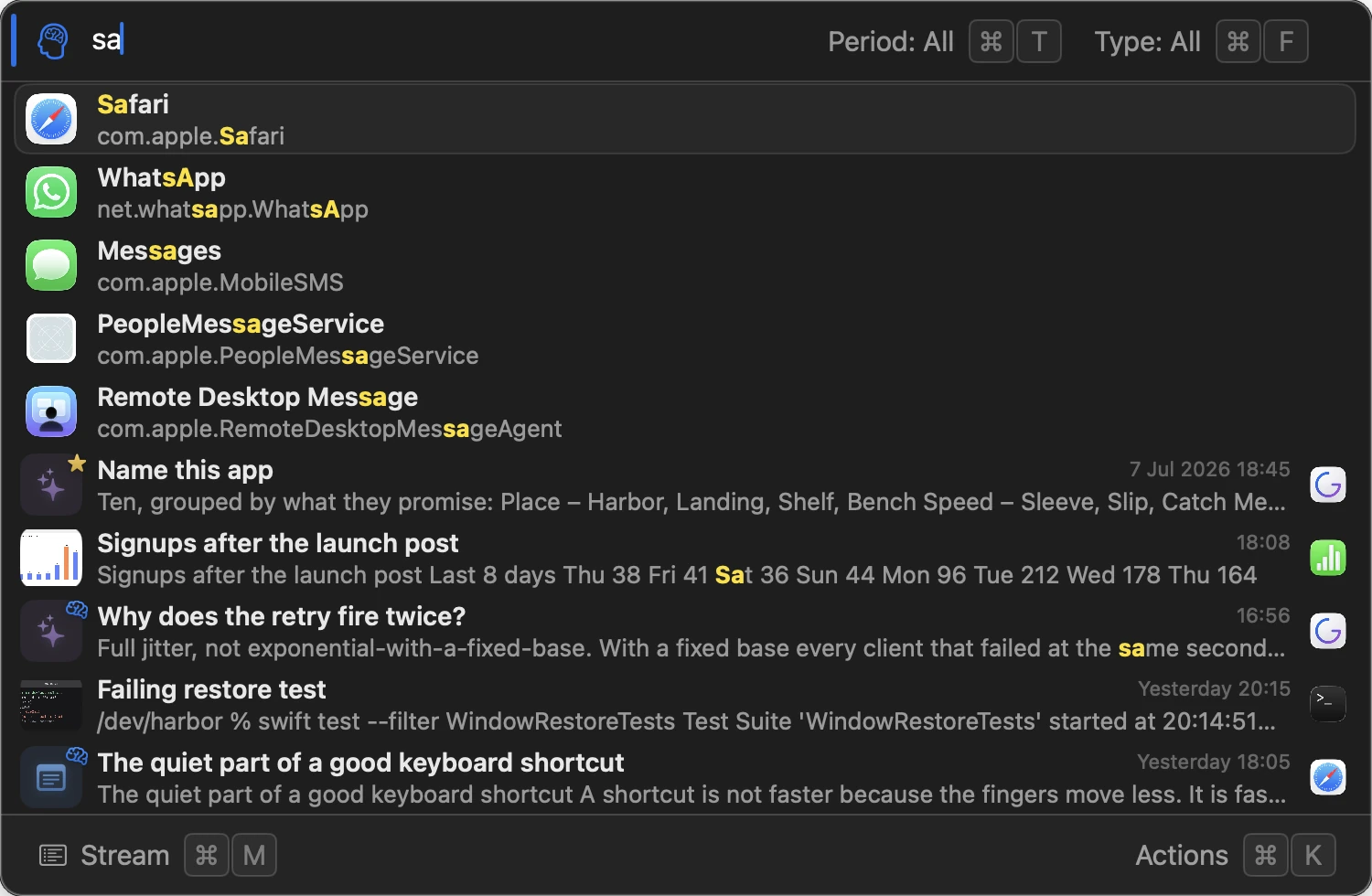
Include applications in search results. Placement: Off, Top of list, or Bottom of list (default Top of list), a match launches with ⏎.
Clipboard
- Monitoring: the master switch for clipboard capture (default on). The same toggle sits in the menu-bar menu, so you can pause it without opening Settings.
- Enter / double-click on a record (default Opens it): what ⏎ and a double-click do to the selected record. Copies it makes them do what ⌘ C does – on a multiple selection too, where ⏎ otherwise opens the Actions menu. ⌘ O still opens a record either way, and ⏎ on an app in the list still launches it.
- Hide panel after copy (default off): a copy – ⌘ C, or ⏎ with the setting above – closes the panel, and focus goes back to the app you came from, so the next key is ⌘ V there. Both settings on is the clipboard-manager gesture: pick a record, panel gone, paste. See How do I paste from Gisti?
- Max history: 1,000 / 2,000 / 5,000 / 10,000 / Unlimited (default 5,000).
- Clipboard apps: apps whose copies are never recorded. The switch at the top of the list flips it into Only these – record nothing but copies from the listed apps, and the row says which way it is pointing before you open it. See Ignore rules.
macOS asks for permission before background clipboard reads – set Gisti to Always Allow when prompted so history works without a prompt every time. Copies marked as passwords are skipped whatever these settings say; see Clipboard.
Screenshots
- Hotkey: default ⇧ ⌘ X. The switch beside it turns the shortcut off altogether – useful when another screenshot tool wants the same keys. Capture is still there in the menu bar, in the panel and in Shortcuts, and the combination comes back the way you set it when you switch it on again.
- Open after capture: toggle; opens the screenshot right after you take it instead of just adding it to the stream (default on).
- Show loupe: toggle; the magnifier that follows the cursor while you select (default on). With it off the overlay still shows the size and coordinates, and Tab still copies the color under the cursor.
- Copy Retina screenshots at 1×: toggle; the clipboard and dragged bitmaps get the version at display resolution instead of the full Retina one, which costs up to four times fewer tokens when you paste into an AI chat (default off). The stored file, Export and Share keep every pixel, and only screenshots Gisti captured itself are affected. See Copying at 1×.
- Max images: same tiers as Clipboard (default 2,000). One limit for all images: screenshots and images copied to the clipboard. OCR always runs on capture – there’s no setting to turn it off.
Browser extensions
Gisti’s web clipper is one extension for both browser families, and this section is where each one is wired up:
- Safari extension: a toggle that opens Safari’s Extensions settings – the extension ships inside the app, Safari just has to be told to enable it.
- Chromium browsers: Connect… installs the native-messaging manifest for Chrome, Chromium, Edge, Brave, Vivaldi and Arc. macOS asks you to confirm the folder once; after that the row lists the browsers that are connected.
- Get the extension: a link to the Chrome Web Store listing.
Storage
- Database location (opens Finder) and total size on demand.
- Auto-delete: Never / 30 days / 90 days / 1 year (default Never).
- Export All (zip) and Import…: import reads a Gisti export archive, keeps existing items, and skips duplicates. Everything a record knows about itself travels with it – favorites, summaries, OCR text, the copy count, a screenshot’s capture scale and its backdrop. The one thing that doesn’t is the formatting a clip was copied with (kept formatting): the text arrives, the RTF stays behind.
- Vacuum Database (compact) and Clear History (destructive) for the database.
About
Version and build, plus links to gisti.app, the User Manual (this documentation), the Privacy Policy, Acknowledgements (the open-source components Gisti ships and their licenses) and Contact, which opens a mail draft with your version already in the subject line.
Gisti is distributed on the Mac App Store, so updates install automatically – there’s no in-app update checker.
Reset
Reset to Defaults restores every setting, after a confirmation dialog. It sits in its own section at the very bottom – a destructive action has no business in the middle of the list.