Documentation
Stream
One chronological list of everything – notes, clipboard, screenshots, chats. ⌘1.
Stream is the default mode and the heart of Gisti: everything you copy, capture, and write, in one list, newest first, grouped by day.
What’s in the list
- Notes: anything you typed and saved with ⏎.
- Clips: clipboard history, captured automatically.
- Images: screenshots (with OCR text) and copied images.
- Chats: saved AI conversations.
- Apps: with App Launcher enabled, matching applications appear in search results and launch with ⏎.
Filtering and search
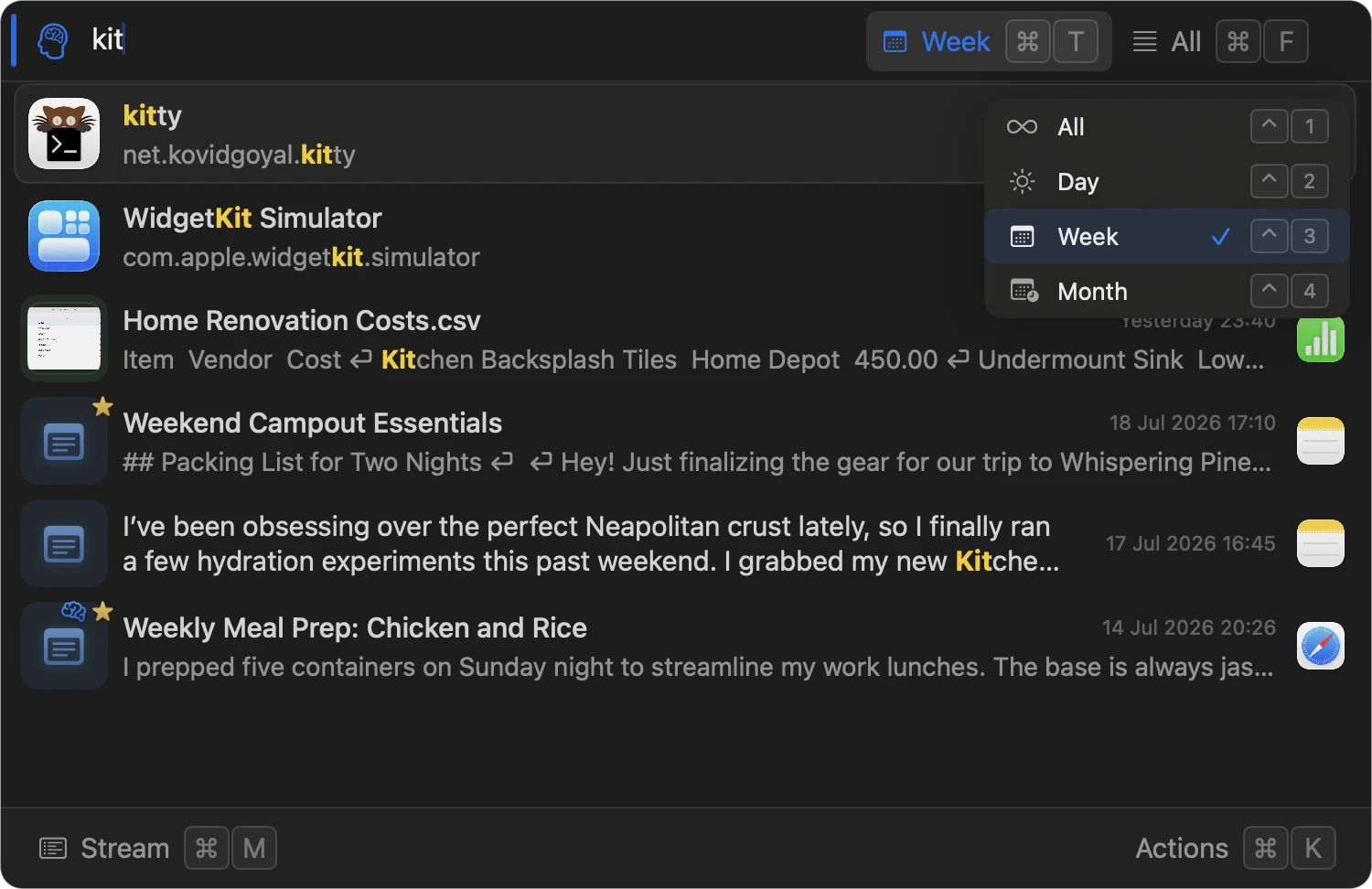
- Content chips: All, Notes, Clips, Images, Chats, ⌥ + number, ⌘ F for the menu.
- Favorites is a switch rather than a chip, at the bottom of the same menu or ⌥ 6: it narrows whichever type is showing, so favorite images are one combination away. While it is on, the chip in the header reads Fav: Images instead of Type: Images.
- Time period: All, Day, Week, Month, ⌃ + number, ⌘ T for the menu.
- Search is hybrid: exact matches, fuzzy matches (typo-tolerant), and semantic matches on local embeddings, fused into one ranking. Results update as you type. Toggle semantic matching with the icon on the left of the input field, or ⇧ ⌘ S. The icon switches between a magnifying glass and a brain – see Semantic search.
- Regular expressions: wrap the query in slashes –
/TODO|FIXME/,/[0-9a-f]{8}-[0-9a-f]{4}-/– and the search becomes an exact one. Matches are highlighted in the rows like any other. See below. - Saved searches: queries you keep in advanced.yaml appear at the bottom of the ⌘ F menu. See below.
Regular expressions
A query between slashes is a pattern rather than text. Nothing to switch on: the slashes are the switch, and until the closing one is typed the query is still ordinary text, so nothing runs while you’re halfway through writing it.
/TODO|FIXME/                 every note or clip mentioning either
/[0-9a-f]{8}-[0-9a-f]{4}-/   things that look like UUIDs
/^error/                     records that start with "error"
Matching is case-insensitive – ask for case with (?-i) at the front of the
pattern. A pattern is an exact question, so it gets an exact answer: no
typo-tolerant matches, no semantic ones (whether or not semantic search is on)
and no app-launcher rows, since a pattern is a question about what a record says
and the list of installed apps can’t answer it. A pattern that doesn’t compile
shows an empty list saying so, rather than quietly searching for the slashes.
Saved searches
A pattern is written once and used a hundred times, so it belongs somewhere other than your memory:
search:
  savedQueries:
    - { name: "TODO / FIXME", query: "/TODO|FIXME/" }
    - { name: "UUID",         query: "/[0-9a-f]{8}-[0-9a-f]{4}-/" }
    - { name: "Errors",       query: "error" }
They appear under Saved searches at the bottom of the ⌘ F menu. Picking one types it into the search field – it isn’t a separate mode, so you can edit it, and combine it with a content chip and a time period like any query you typed yourself. A saved query doesn’t have to be a pattern: plain text works and is just as reusable.
With no savedQueries configured, the menu looks exactly as it did.
Working with elements
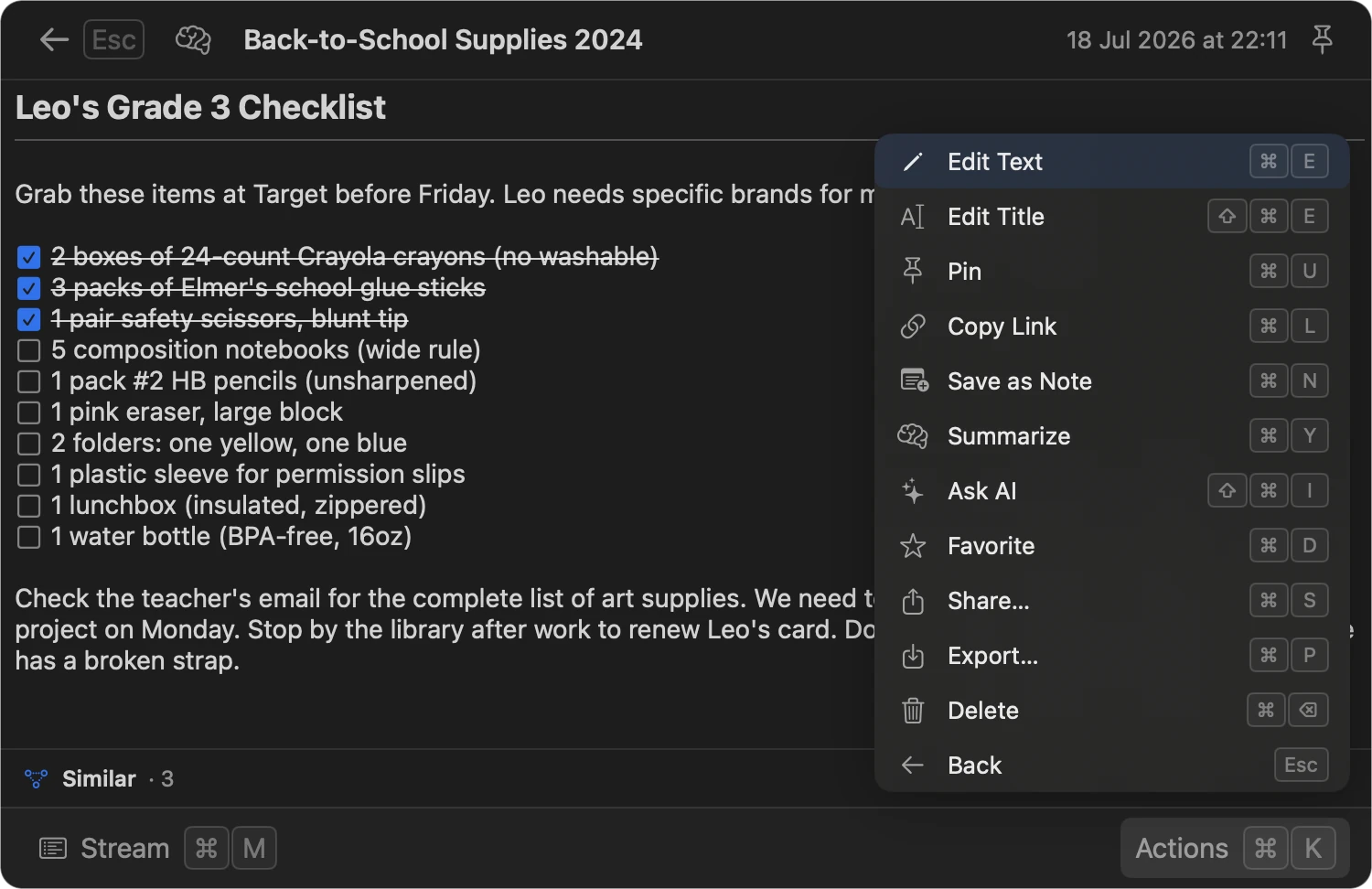
- ↑ ↓ to navigate, ⏎ to open the detail view, ⇧ ↑/↓ to select multiple. ⌘ C copies the element – a multiple selection too, top to bottom as listed – and ⌘ V in any app pastes it. Settings can make ⏎ copy instead of open, and close the panel after a copy.
- Right-click or ⌘ K, the Action Menu: Summarize, Copy, Favorite, Share, Export, Delete.
- Force Touch an element on a trackpad, in two stages: press until it clicks once and the element is selected and previewed in place, keep pressing and it opens fully. Let go before the second stage and the preview fades – nothing is opened. The same gesture works on the cards in Topics.
- Drag an element out of the window and drop it in Finder, Mail, a chat
app, or anywhere else: notes, clips, and chats drop as plain text;
screenshots and copied images drop as a picture – in Finder as a file
under the record’s name,
Signups after the launch post.png, in a chat as the image itself, never as its OCR text; app entries drop as a file reference to the app. Dragging one row of a multi-selection takes the whole selection, as in Finder. A selection that mixes pictures with text lands as files – a note or a chat as.md, a clip as.txt– because Finder takes files or text, not both in one drop. Each record that lands counts as a copy on its×Nbadge. - ⌘ Y summarizes in place – the summary expands under the element with Save as Note and Copy at hand.
- Deleting is instant and quiet, with Undo offered right after.